
Appearance
Quickstart
To start with the community edition Taurec bundle on Windows, only a few steps are needed.
Extract package
The bundle zip file can be extracted to any folder. From the zip file the executables for the database server and the manager will be used.
Start Server
The server application can be started via double-click on server.exe.
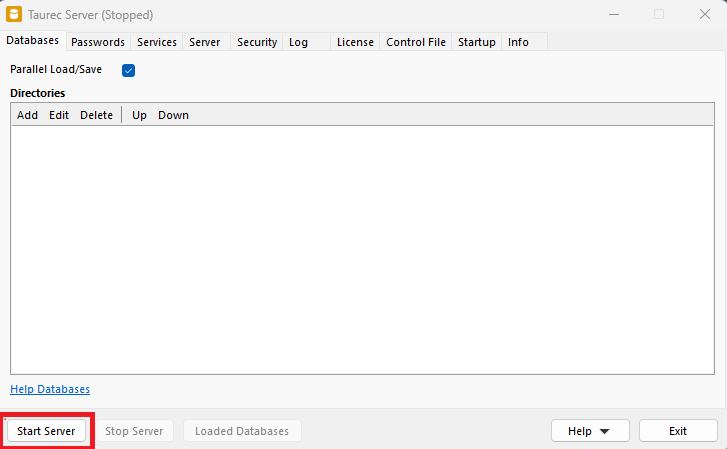
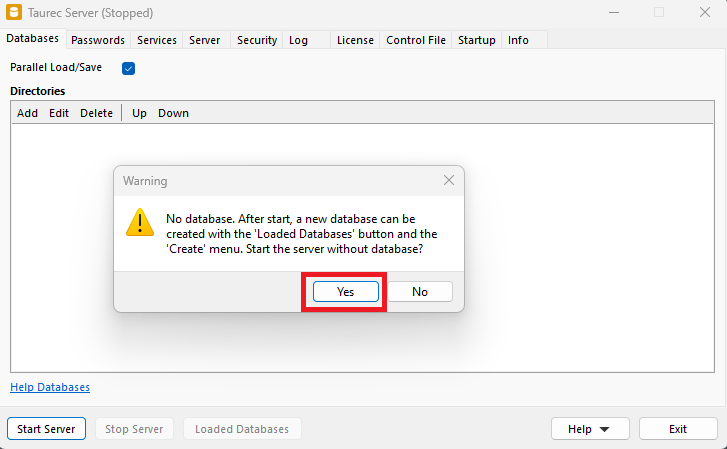
The database server is started by clicking on Start Server. If no databases are loaded, a warning message is displayed.
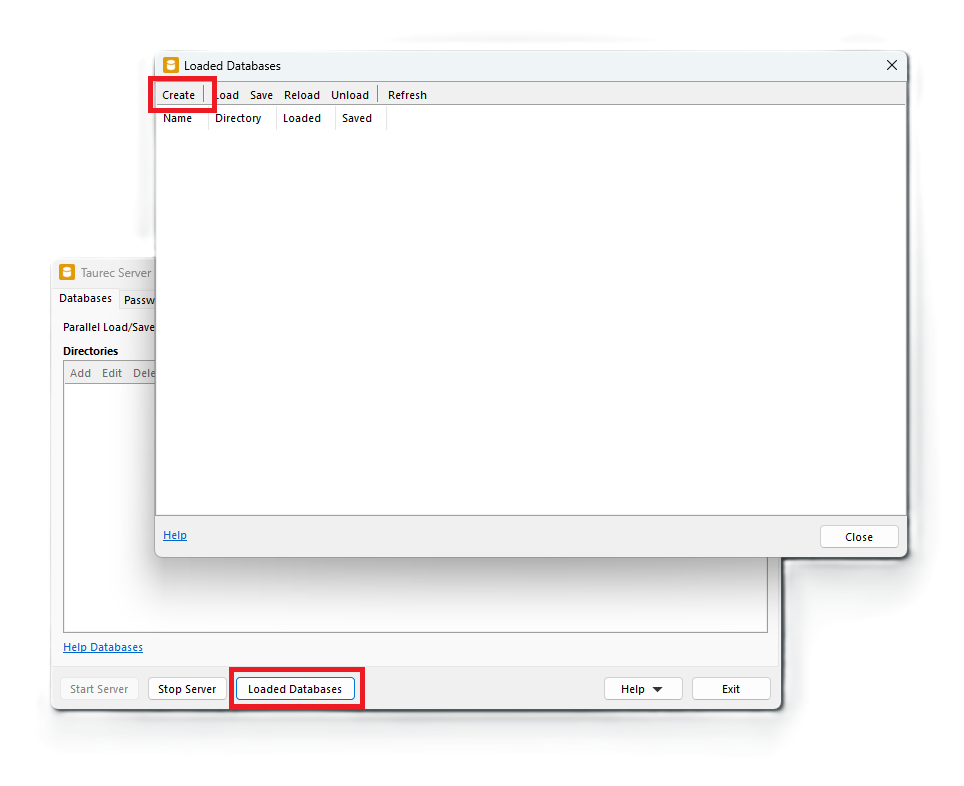
After clicking on Loaded Databases and Create, a database can be created.
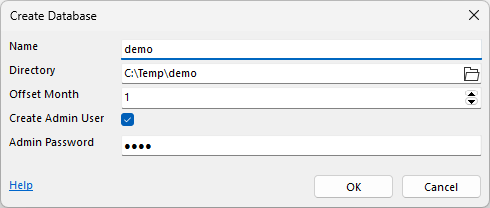
An empty directory needs to be selected as the database directory. If multiple databases are running within one server and need to be administrated by different people, a database admin user should be created with full access to that database only.
The manager application can then be used to view and edit the database contents.
Use Manager
The manager application can be started via double-click on manager.exe. The connect window allows connection to the demo database using the admin credentials.
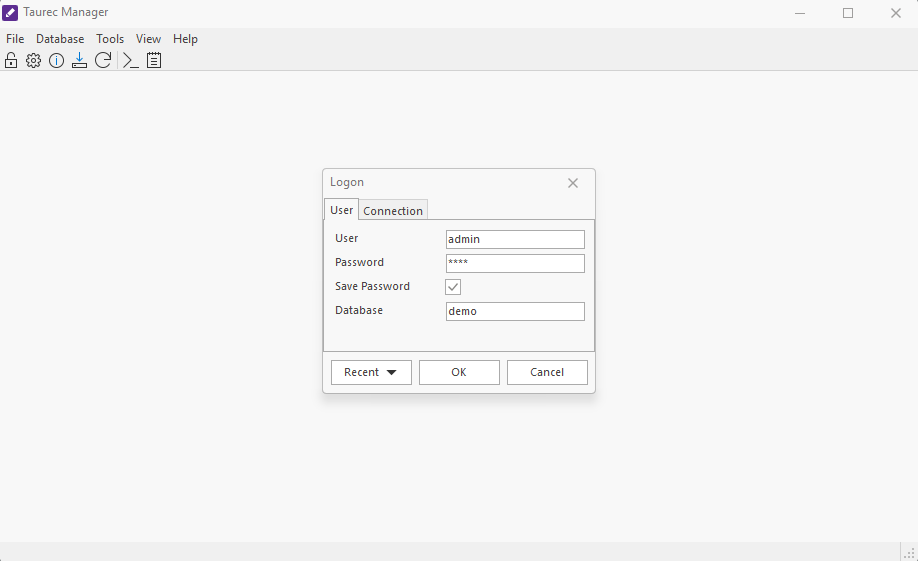
The manager displays all database objects and their contents. The initial database is empty except for fixed time/date dimensions that are created automatically.
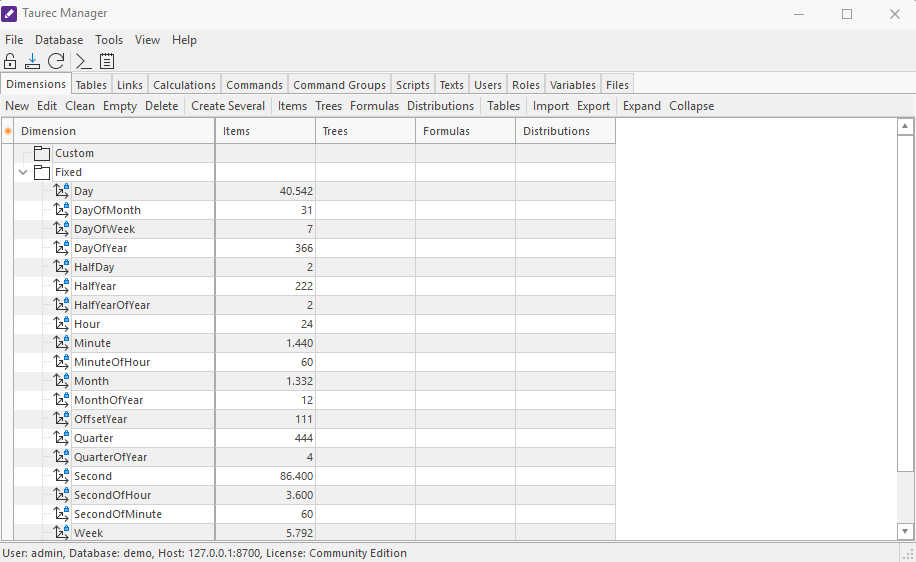
The modeling tutorial describes how to set up a database model and add data.