
Appearance
 Connector to Power BI®
Connector to Power BI®The Taurec data connector to Power BI® enables the use of Microsoft Power BI® for visualization while keeping Taurec as the single source of truth. This section describes the installation of the connector, the configuration of security settings, and the import of dimensions for reports.
Configure the connector
Step 1
Copy the Taurec.mez custom connector file from the zip file into folder Documents\Power BI Desktop\Custom Connectors. This is the default folder for Microsoft® Power BI® custom connectors. Create it if it does not already exist.
Step 2
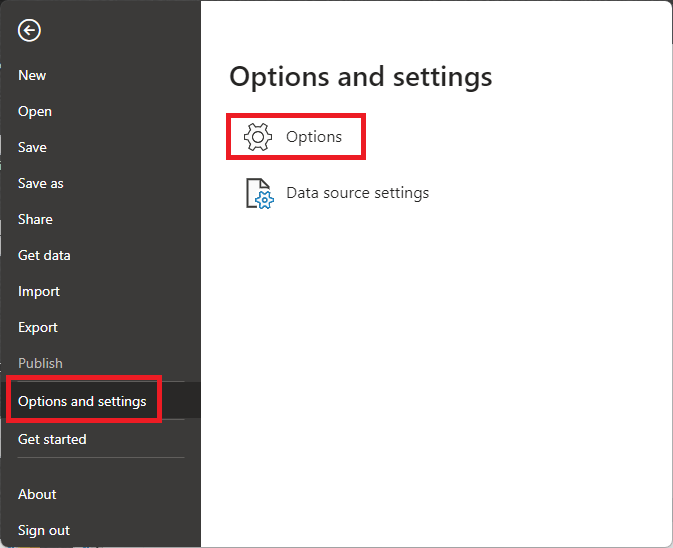
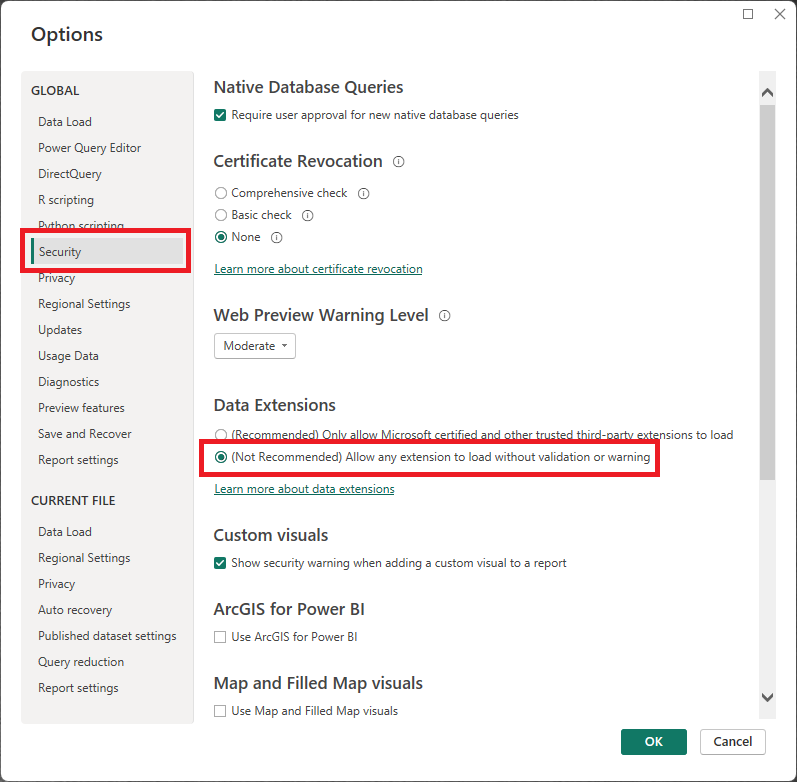
Start Power BI® and select File/Options and settings/Options/Security/Data/Extensions to change the security settings.
Select Allow any extension to load the connector without validation or warning option.
Step 3
Restart Power BI® Desktop.
Use the connector
Step 1
Start Power BI® Desktop.
Step 2
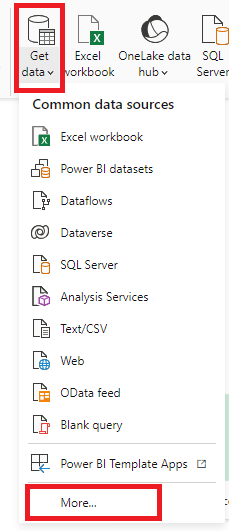
Open the Get Data menu and select More to open the Get Data window.
Select category Other, select the Taurec database connector and click Connect. 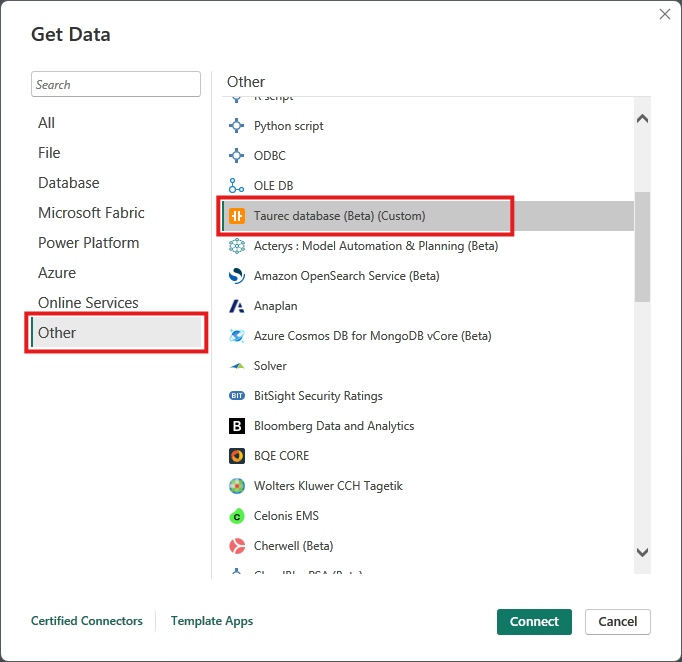
Step 3
In case Preview Connector warning message pops up, click Continue.
Step 4
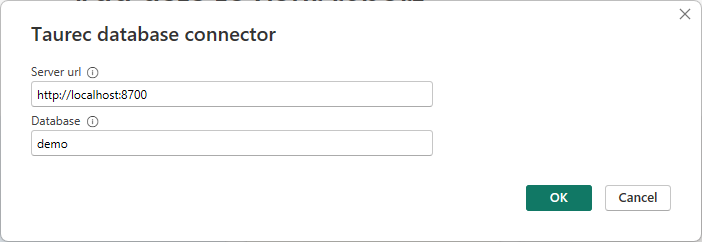
Input connection parameters for the connector and click Ok.
Step 5
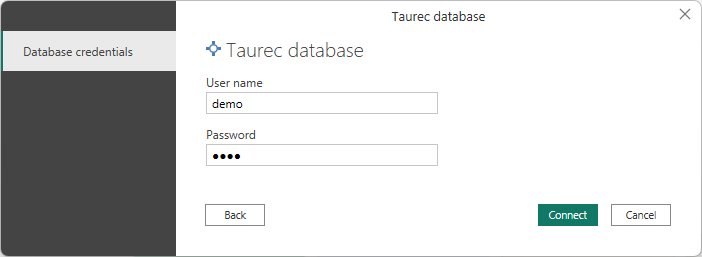
Input your database login credentials and click Connect.
Step 6
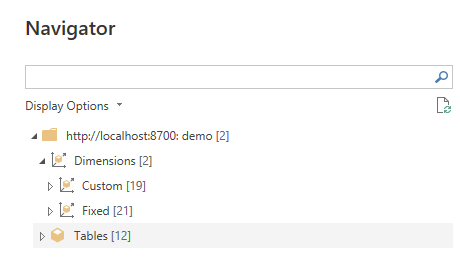
Upon successful connection you can browse through the dimensions and tables of the selected database using the Navigator tree.
Click on a dimension or table to preview it and tick its checkbox to select it for import.
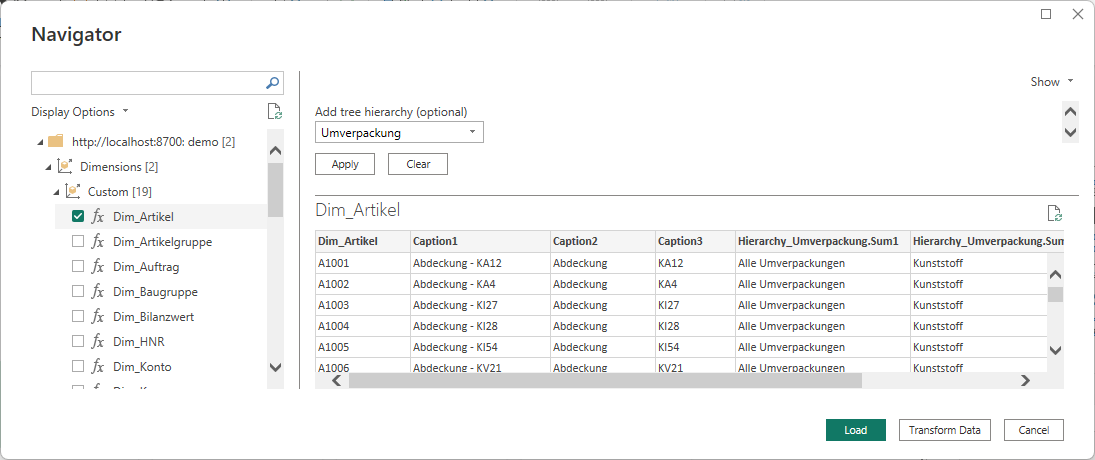
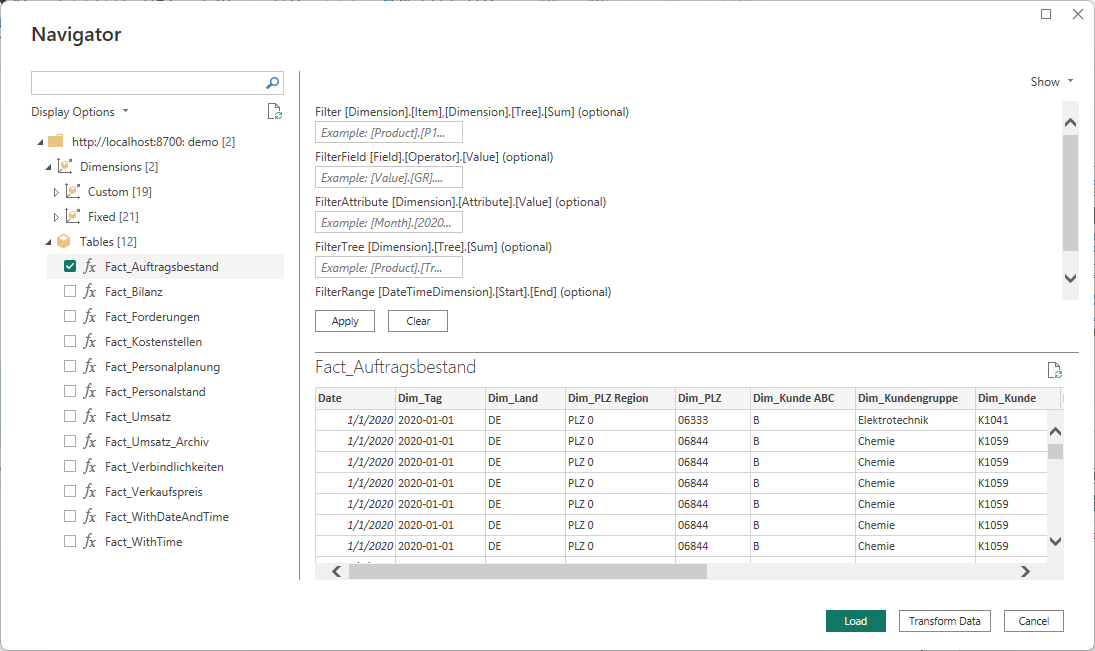
Once you are finished, click Load to import the selected data.
Additional features
The connector has some advanced features for import:
- Automatic prefixing of dimensions by Dim_ and tables by Fact_ and consistent naming of dimensions in tables. This allows Power BI® to automatically create the correct table relations.
- For tables which contain date dimensions, an additional column date is created that contains the value of the minimal date dimension in date format.
- For dimensions empty Caption columns are automatically removed and a tree can be selected to be added as a hierarchy on import. The format of the tree hierarchy is such that a Power BI® hierarchy can be easily created from it.
- For tables additional filters can be specified on import. The syntax to specify the filters is the same as for the Show Records API command.