
Appearance
Operations
The Taurec server provides a graphical user interface (GUI) for managing all aspects of server operation. This interface allows administrators to control the server, manage databases, and configure automation options using tabs, buttons, and dialogs. For advanced startup, automation, and troubleshooting, see the full list of Start Parameters. The following sections describe the available controls, database management, and automation features.
Manual Operations
The main server controls are available as buttons at the bottom of the window:
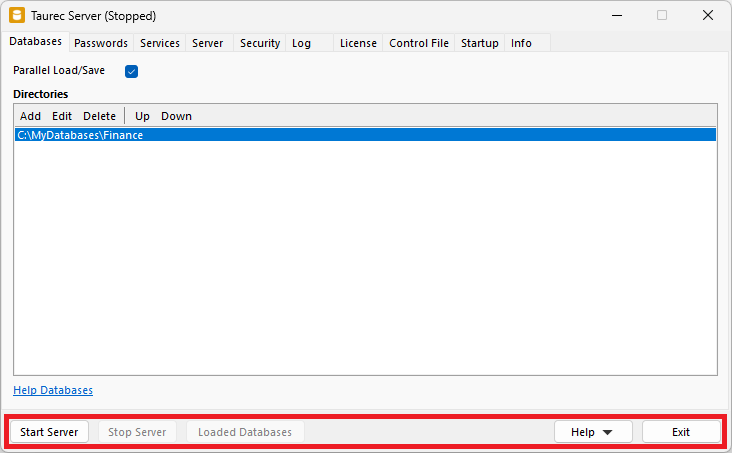
Start Server
Starts the server with the current parameters. To use the current parameters on the next start, save them in the control file. The server runs inside the desktop application Server.exe. When the application is closed, the server also stops. Use the Startup tab to create or manage a service.
Stop Server
Stops the server.
Loaded Databases
Shows the loaded databases (only active when the server is running).
Exit
Quits the server.
Database Management
The Loaded Databases button (active only when the server is started) opens a dialog to manage databases.
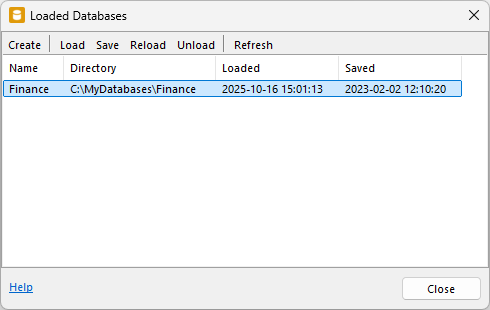
Create
Opens a dialog to create a new database.
Load
Opens a dialog to load an existing database.
Save
Saves the selected database from memory to disk.
Reload
Reloads the selected database from disk to memory. All active users will be disconnected from the database.
Unload
Unloads the selected database.
Refresh
Reloads the database list.
Creating a Database
The Create button in the menu opens the dialog to create a new database. Each database is located in a directory and has a unique name. The database directory contains subfolders for different database objects like dimensions, tables, or users.
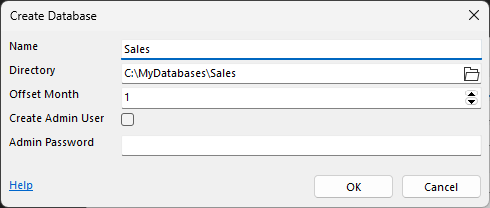
Name
Unique name of the new database. The name is stored in the file Control.txt, which is located in the database directory.
Directory
An empty directory where the data is stored. After creation, this directory contains other directories like dimensions, tables, or users and the configuration file Control.txt.
Offset Month
The start month of the fiscal year (1=Jan. till 12=Dec.).
Create Admin User
Creates an Admin user with administrator permissions. In that case, the 'Sys' user does not have to be used.
Admin Password
Initial password for the 'Admin' user.
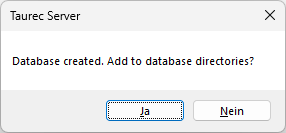
Add to Databases
After creating, the database can be added to the Databases list.
Automation
The server can be operated automatically using scheduled tasks or as a Windows® service. These features enable unattended operation and regular maintenance. See the following topics for details:
- Automatically Save a Database: How to schedule regular database backups using the Windows® Task Scheduler.
- Automatically Run the Server: How to run the server as a Windows® service for automatic startup.