
Appearance
Installation
It is recommended to create a new folder for the Taurec Add-in. In this sample it is C:\TaurecAddin. Copy the addin files to the folder.
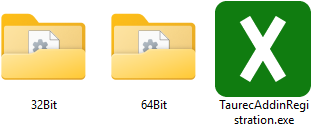
Files
Depending on which Excel® version is installed, the 32 bit or 64 bit version must be used. There is a folder for each version. Each folder contains the DLL (TaurecAddin.dll) and a configuration file (TaurecAddin.ini).
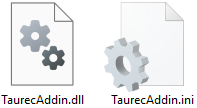
The configuration file controls the type of installation (user or administrator). By default, it is installed for the active user, so no administrator rights are required.

Registration
The application TaurecAddinRegistration.exe is used to register the Taurec Add-in.
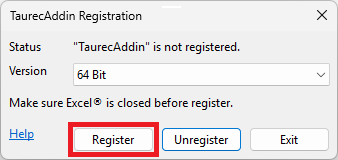
Status
Shows the actual registration status (Taurec Add-in is registered or not registered).
Version
Version to be registered.
Buttons
Register
Registers the Taurec Add-in. Make sure Excel® is closed before register. Otherwise, the registration will fail.
Changing the TaurecAddin.dll location after registration
If the DLL is moved to another location or the installation folder is renamed, the Taurec Add-in must be unregistered and then re-registered.
Unregister
Unregisters the Taurec Add-in.
Exit
Quits the application.
Starting Excel®
After the start of Excel® the Taurec Filter panel appears on the left and the Taurec menu is visible in the ribbon bar.
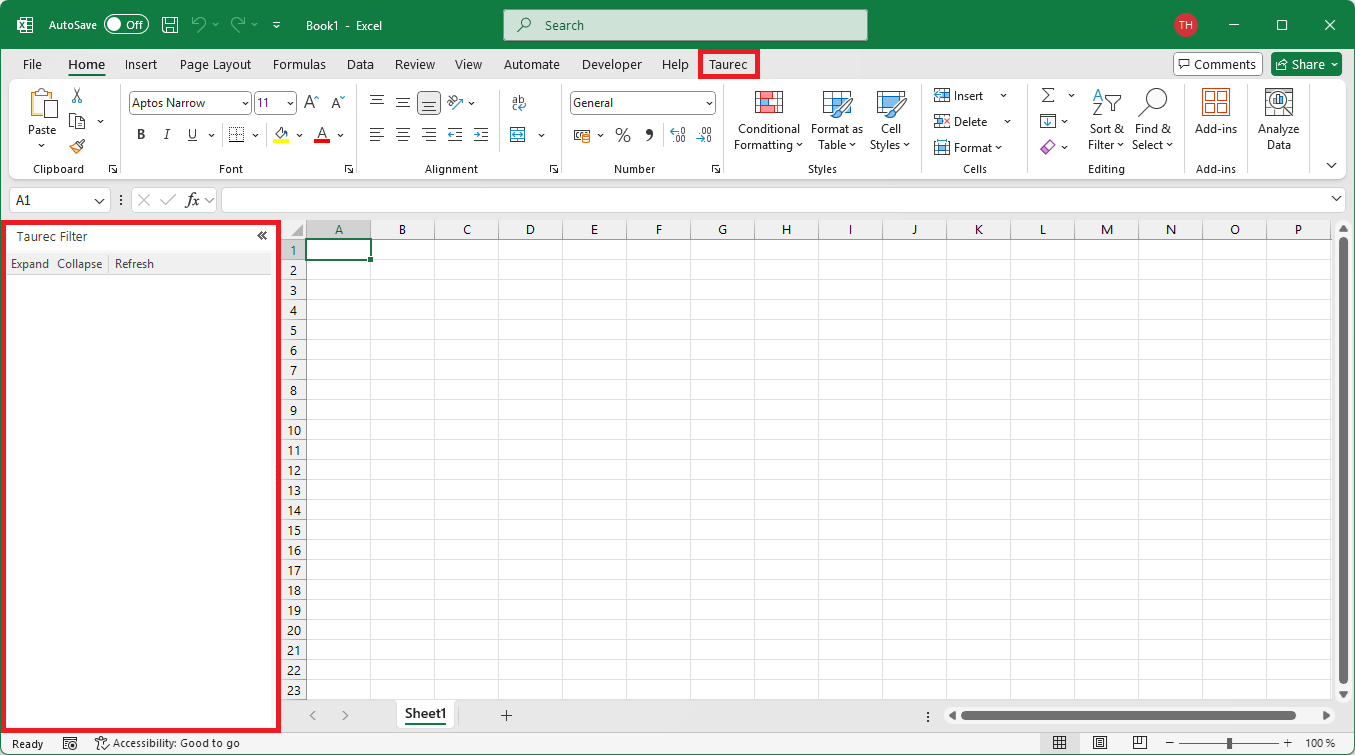
Managing the Add-in in Excel®
After registration TaurecAddin is visible in the Excel Options > Add-ins.
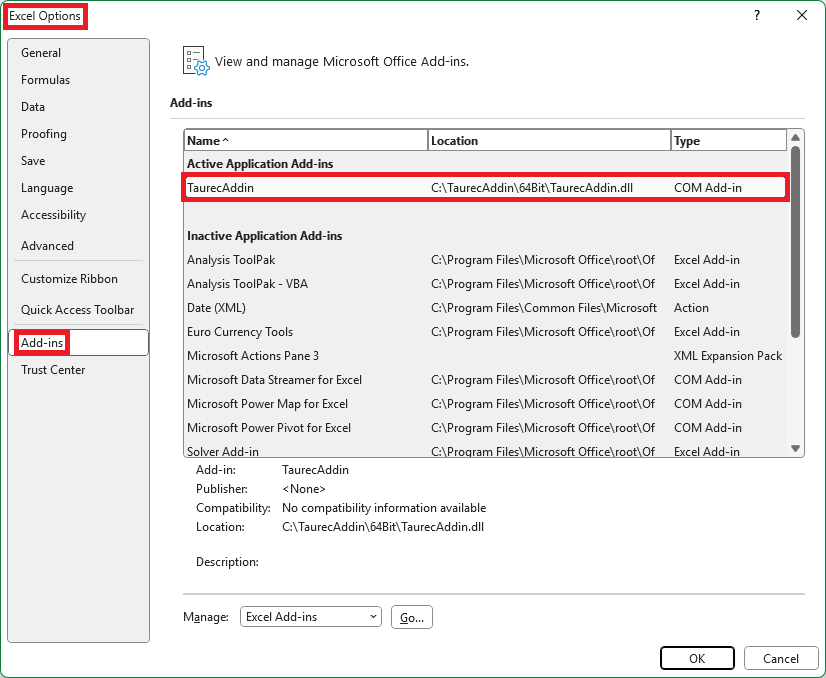
Taurec supports two types of add-ins: Excel Add-in and COM Add-in. Both types are managed with the popup menu at the bottom.
Excel-Addin

Dialog to manage the Excel® Add-in:
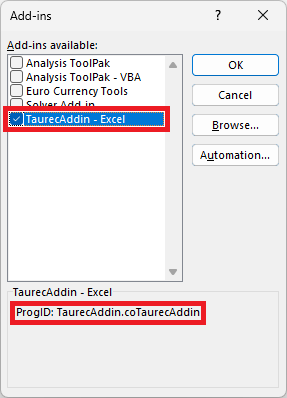
TaurecAddin - Excel
Must be enabled to use the Taurec Add-in.
ProgID
The id is needed for visual basic.
COM-Addin

Dialog to manage the COM-Addin:
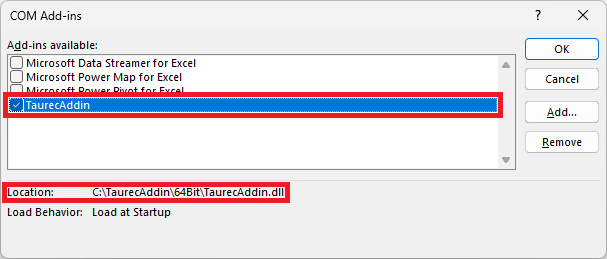
TaurecAddin
Must be enabled to use the TaurecAddin.
Location
Shows the location of the TaurecAddin.dll.