
Appearance
Configuration
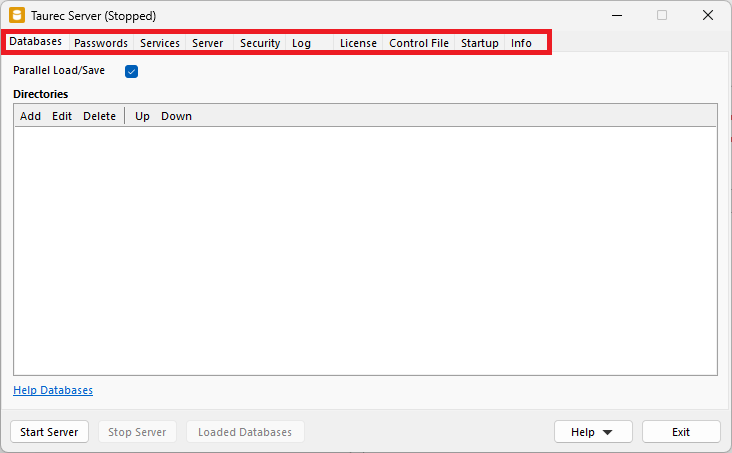
The configuration of the server is organized into several sections, each is accessible via a tab in the graphical interface. This section covers all settings that should be reviewed or adjusted before regular use. All settings are saved in a control file, which can be loaded or saved as needed. Operational instructions (such as starting/stopping or automation) are covered in the next section.
Databases
Several databases can run simultaneously on the server. The data of each database is located in a directory. This directory contains subfolders for different database objects like dimensions, tables or users. In Databases, the directories of the databases are specified.
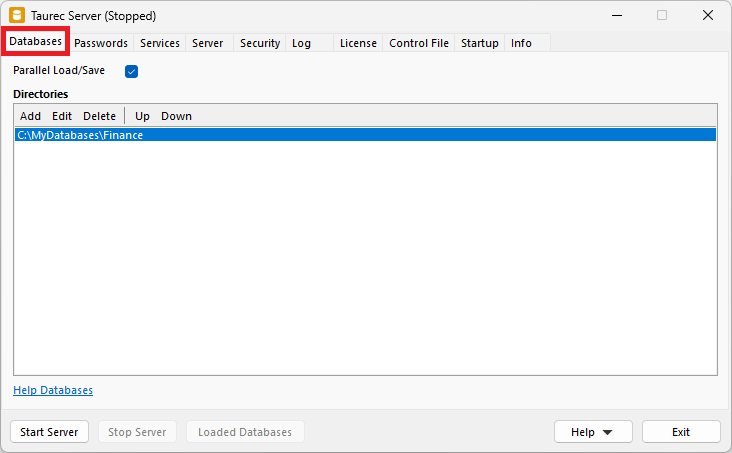
Parallel Load/Save
Loads and saves the databases in parallel (multithreaded).
Directories
List of database directories. Databases are loaded in the order of the list.
Add
Opens a dialog to add an existing database directory to the list.
Edit
Opens a dialog to edit the selected database directory.
Delete
Deletes the selected database directory from the list. The directory in the file system is not deleted.
Up
Moves the selected database directory up in the list.
Down
Moves the selected database directory down in the list.
Database Control File
The text file Control.txt is located in each database directory that contains settings and information about the database.
Example:
Database=Finance
Catalog=False
OffsetMonth=1
Saved=2023-04-12 11:51:29
Version=20
WebDirectory=C:\MyServer\Web\Protected
Database
Name of the database. It is used when the user logs on. The name can differ from the directory name. If a database directory is copied and should run in parallel with the original, the Database name must be changed. Otherwise, an error message is displayed. If the control file does not contain the Database parameter, the name of the database directory is used.
Catalog
If True, the database is visible in the SHOW DATABASE CATALOG command. The default value is False.
OffsetMonth
Start month of the fiscal year (1=jan. till 12=dec.). The default value is 1 (jan.).
Saved
Last date and time when the database was saved from memory to disk. This parameter is used internally and should not be changed.
Version
The version of the database. An outdated server might not be able to load a database that was saved with a newer server version. This parameter is used internally and should not be changed.
WebDirectory
The web directory of the server is defined in the Endpoints tab. A database can be used to protect the entire web directory or subdirectories of the web server. In this case, a user needs to log on with a valid username and password of the database to access a web page. Basic Access Authentication is used for logon.
Passwords
Each database has two fixed users for administration. Sys and SysTech. The passwords for these users are not saved inside the database. They are set by the server at start. Every database of a server uses the same passwords for Sys and SysTech. The initial password is pass.
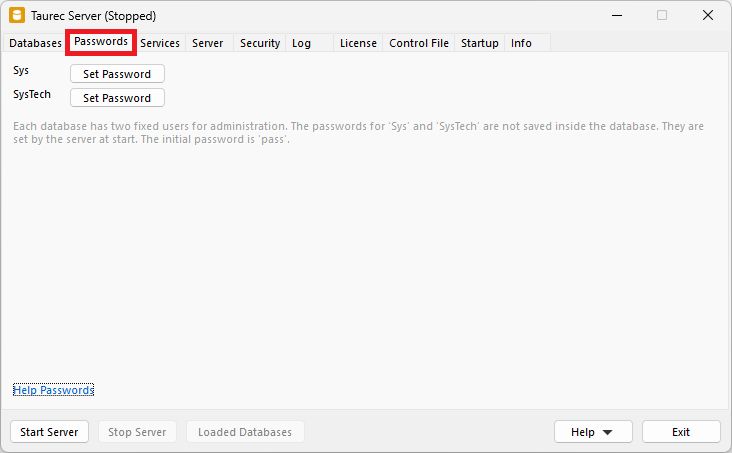
The Set Password buttons are used to set a new password.
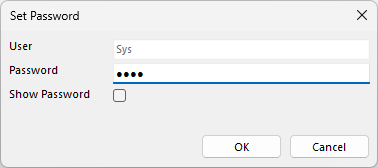
Sys
The user Sys that has all privileges.
SysTech
The user SysTech can manage databases (e.g. create, load or save databases) but cannot see data.
Services
The server not only delivers data, but it is also possible to deliver websites.
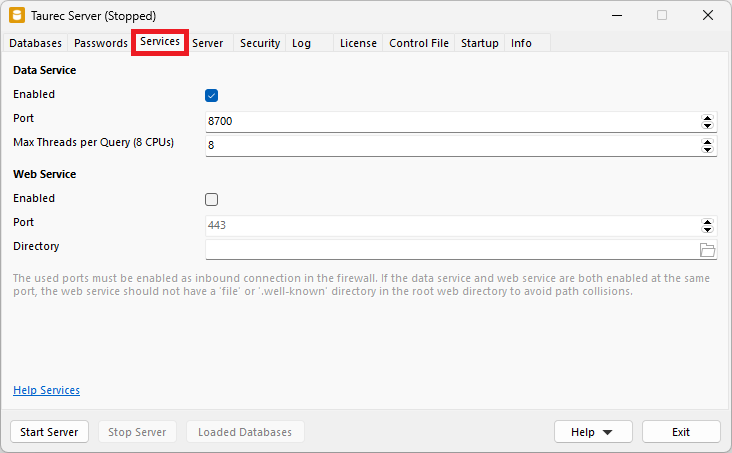
Data Service
Delivers the data that is queried.
Enabled
Enables or disables the data service.
Port
Data service port. The default is 8700. The port must be enabled as inbound connection in the firewall.
Max Threads per Query
Queries can be processed in parallel. This parameter specifies the maximum number of threads used by a query. The number of available threads on the server is shown in parentheses.
Web Service
Standard http web service, which can be used to deliver static html files or a single page application (SPA).
Enabled
Enables or disables the web service.
Port
Web service port. The default port without TLS is 80. With TLS it is 443. The port must be enabled as inbound connection in the firewall.
Directory
Root directory for the files that are served. Start file is index.html.
Server
Specifies the type and configuration of the http server.
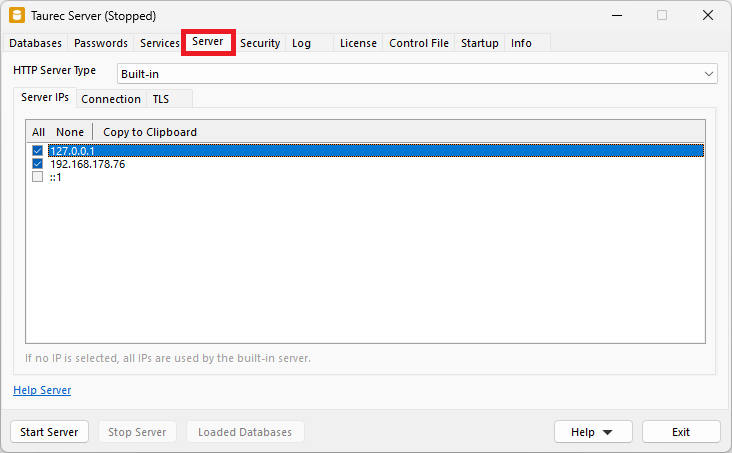
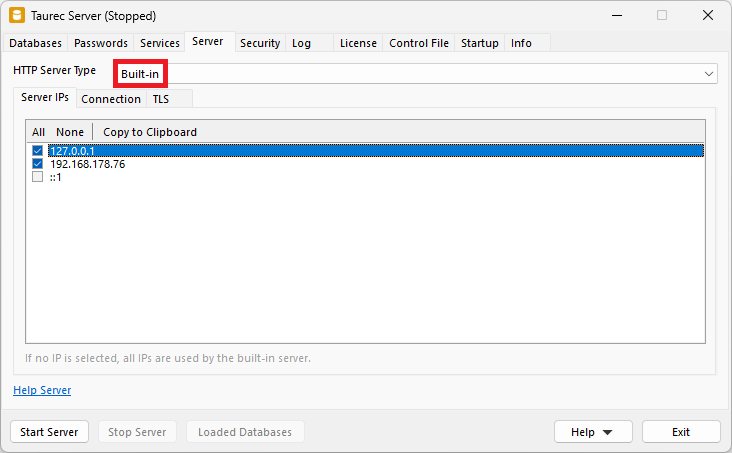
HTTP Server Type
Selects the http server type: Built-in or HTTP.sys.

Built-in Server
The built-in http server that is shipped with the product.
Server IPs
Enables or disables the TCP/IP addresses used by the server. If no IP is selected, all available IPs are used.
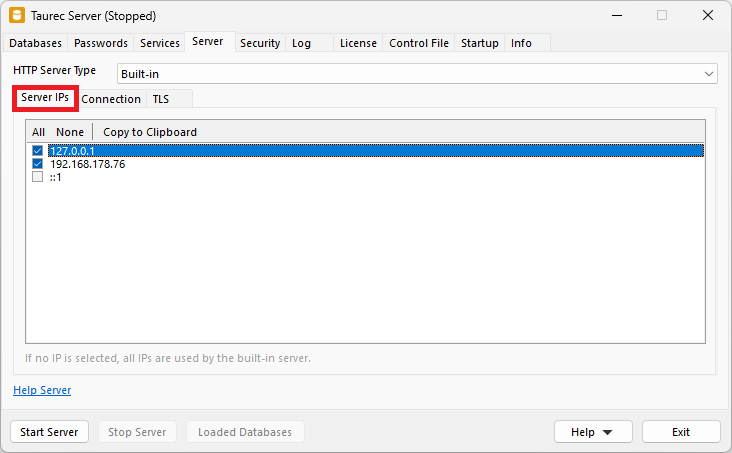
All
Enables all IPs.
None
Disables all IPs.
Copy to Clipboard
Copies the selected IP address to clipboard.
Connection
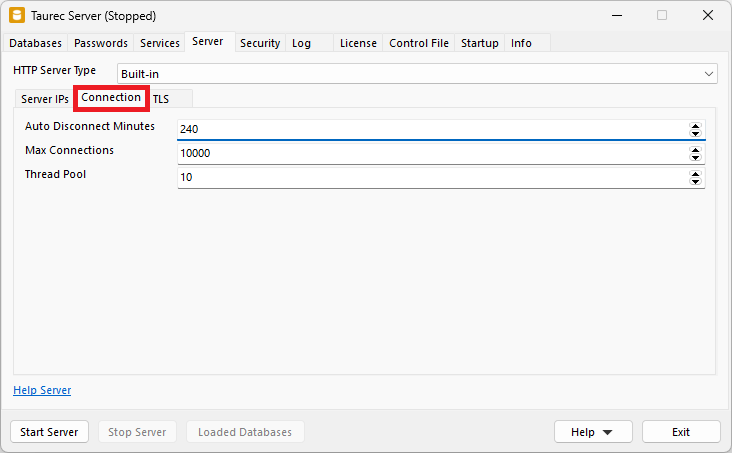
Auto Disconnect Minutes
Minutes after which an inactive connection is closed.
Max Connections
Indicates the maximum number of simultaneous http connections allowed for the server. If the value is 0, unlimited http connections are allowed.
Thread Pool
Every query/request runs in its own thread. Since it takes some time to initialize a thread, a thread pool is used that initializes and holds the number of threads specified by Thread Pool.
TLS
TLS (Transport Layer Security) encrypts the communication between server and client with OpenSSL. A valid certificate is required, which is stored in the Certificate File and Key File.
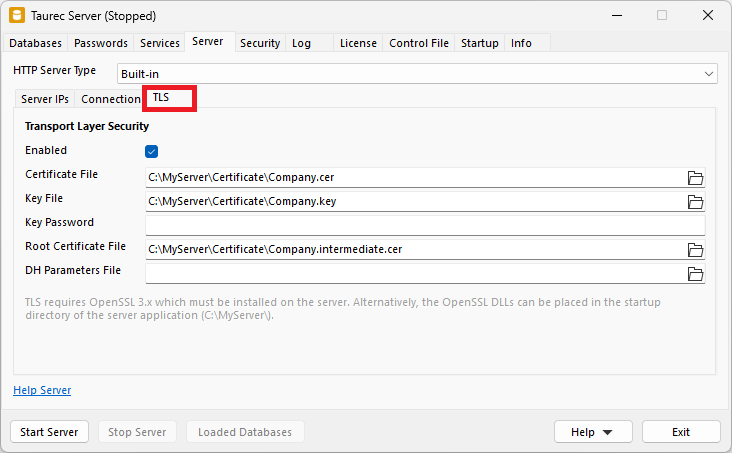
Enabled
Enables or disables TLS.
Certificate File
Path to the public certificate file. It contains the signed X.509 certificate. The file extension is usually .cer, .cert, .crt or .pem.
Key File
Path to the private key file. It must be kept secure. The file extension is usually .key or .pem.
Key Password
Password for the private key (if protected).
Root Certificate
Path to the root certificate file. It is used to protect/validate the public certificate. The file extension is usually .cer, .cert, .crt or .pem.
DH Parameters File
Path to the DH parameters file (Diffie Hellman key exchange).
TLS Uses OpenSSL
If TLS is enabled, OpenSSL 3.x must be installed on the server. Alternatively, the OpenSSL DLLs can be placed in the startup directory of the Server.exe.

HTTP.sys Server
The HTTP.sys server is integrated into Windows, it is also used by the Microsoft® IIS web server.
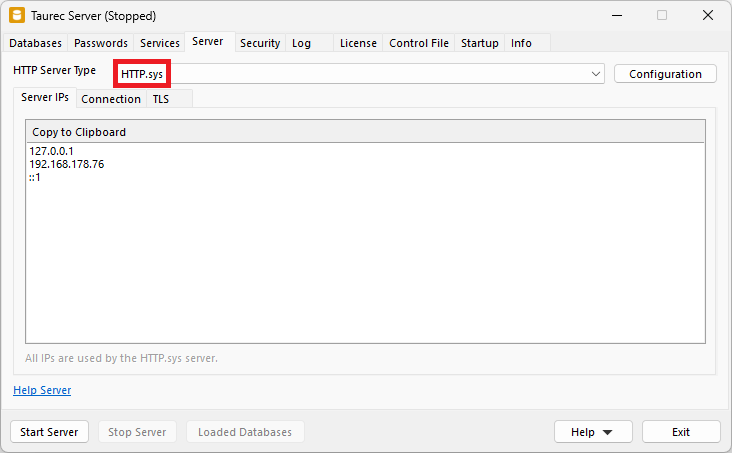
Configuration
When HTTP.sys is chosen, the Configuration button appears at the end of the select box.

The button is used to configure the HTTP.sys server. This only works if the application is running as an administrator (right click, run as administrator).
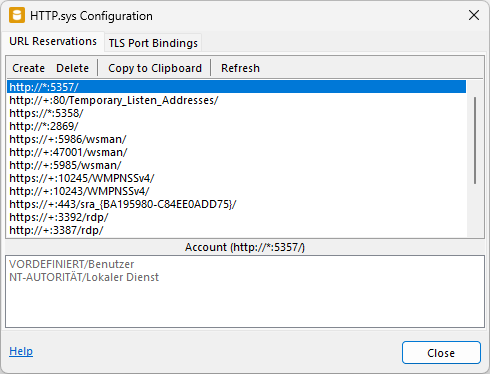
URL Reservations
Depending on the settings, there are different endpoints, ports and TLS parameters. These URLs must be reserved in the HTTP.sys server. The list shows all active URL reservations. Windows® also uses HTTP.sys, these internal URL reservations are also displayed in the list.
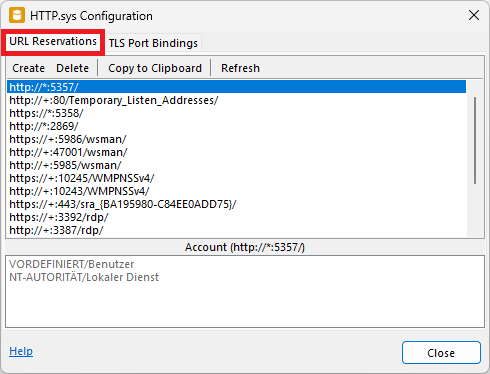
Create
Creates the URL reservations.
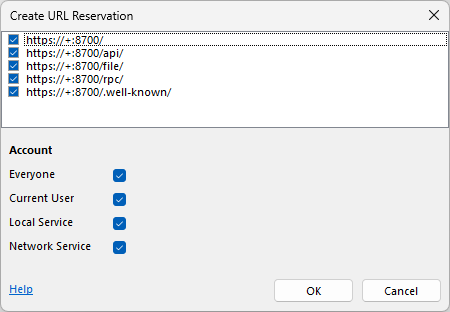
Reserverations that are already created are deactivated.

Delete
Deletes the selected URL reservations.
Copy to Clipboard
Copies the selected URL reservation to the clipboard.
Refresh
Reloads the URL reservation list.
Account
Shows which Windows® accounts the reservation has been added to.
URL Reservations Format
A URL reservation uses a certain format.
- If TLS is enabled, it starts with https://, otherwise with http://.
- The + indicates that all TCP/IP addresses of the server are used.
- The port number starts with a colon (:).
- Finally, the endpoint is specified. The web server (port 80 or 443) has no endpoint. The data server (normally port 8700) can be used without an endpoint (default). In this case rpc is used.
Example:
https://+:443/
https://+:8700/
https://+:8700/api/
https://+:8700/file/
https://+:8700/rpc/
https://+:8700/.well-known/
TLS Port Bindings
If TLS is enabled, the corresponding port must be connected to a certificate. The certificate must be installed in Windows® to the local machine store and bound to the port. Windows® certificates are managed with Manage Certificates.
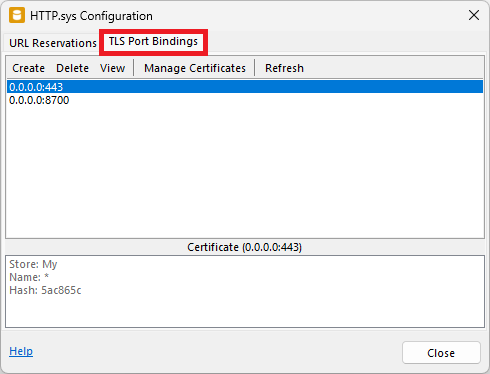
Create
Binds a certificate to a port for the web server.
Delete
Deletes the selected port bindings.
View
Shows information about the certificate for the selected port.
Manage Certificate
Import or delete Windows® certificates.
Refresh
Reloads the port binding list.
Certificate List
Shows certificate info for the selected port binding.
Create a TLS Port Binding
The Create button opens the Create TLS Port Binding dialog.
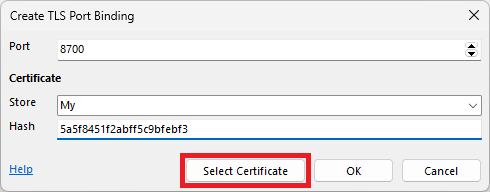
Port
The port where the certificate will be bound to.
Store
Indicates which certificate store will be used to retrieve the certificate. The default store is My (personal store). The certificate to be used must be installed in Windows® to the local machine store (not current user).
Hash
It contains the hash of the certificate to be bound to. The hash/certificate can be selected with the Select Certificate button.
Select Certificate Button
Selects a certificate from the selected store. The hash of the selected certificate is saved in the Hash field.
TLS Port Binding Format
A port binding uses a certain format.
- The 0.0.0.0 indicates, that all TCP/IP addresses of the server are used.
- The port number starts with a :.
Example:
0.0.0.0:443
0.0.0.0:8700
Server IPs
Shows the available server TCP/IP addresses. HTTP.sys uses all of these addresses.
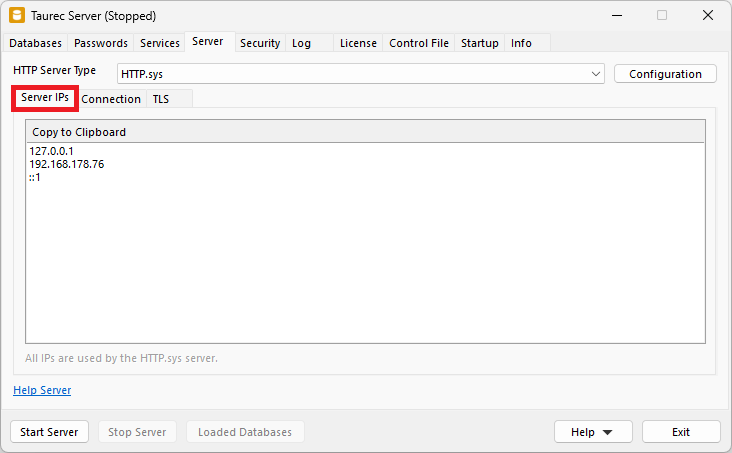
Copy to Clipboard
Copies the selected IP address to clipboard.
Connection
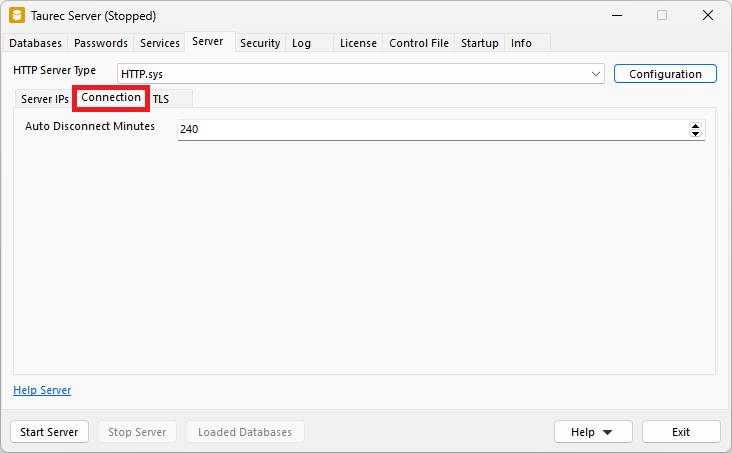
Auto Disconnect Minutes
Minutes after which an inactive connection is closed.
TLS
TLS encrypts the communication between server and client. A valid certificate is required, which must be placed in the Windows® certificate store.
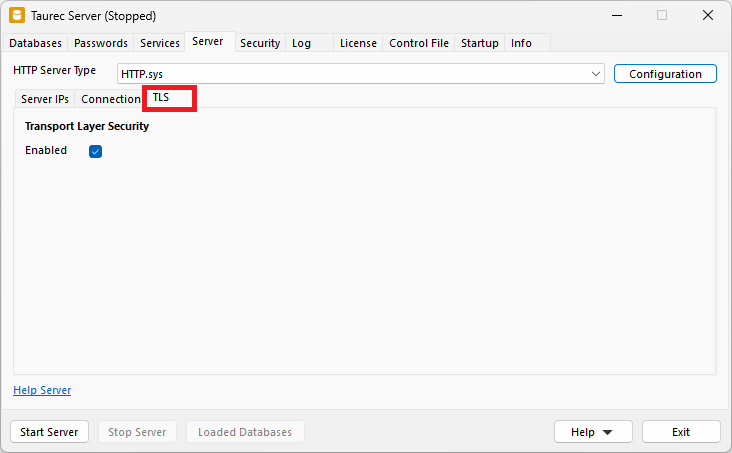
Enabled
Enables or disables TLS. If it is enabled it must be configured with the Configuration button.
Security
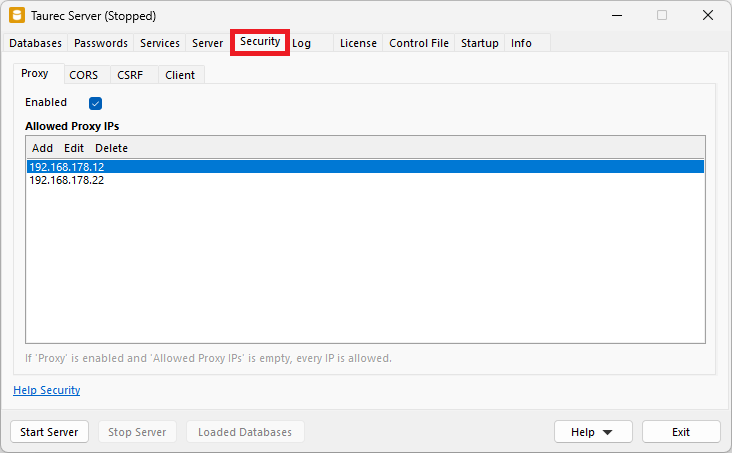
Proxy
Proxies can be used, when the server is located behind a reverse or edge proxy, like Nginx, Traefik or Haproxy. When using a proxy, some information of the server request (e.g. the requested URL or the IP of the client) are provided as if the proxy is the client. In this case the IP of the client will always be the IP of the proxy server, not of the original client. The same way, the requested URL is the one requested by the proxy itself, which might be different from the original URL requested by the client.
When proxies are allowed the server will process the X-Forwarded headers sent by the proxy server, which holds information about the original client. The server modified the request based on that information, so the request contains the original requested URL and IP.
Infos about X-Forwarded headers:
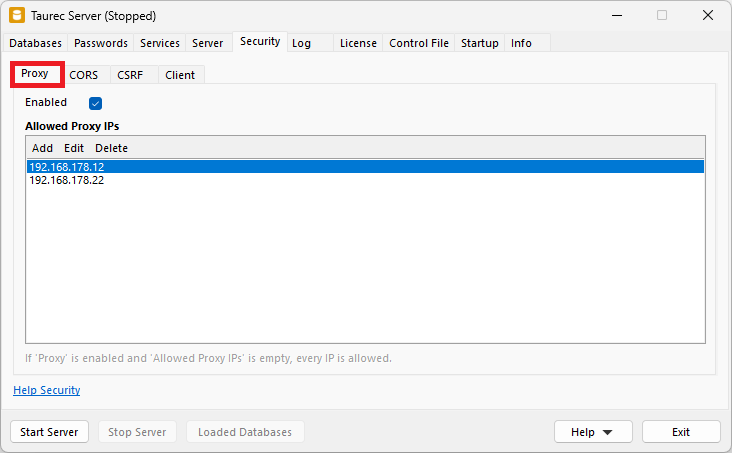
Enabled
Enables or disables proxy IPs.
Allowed Proxy IPs
List of the allowed proxy IPs. If the list is empty all proxy IPs are allowed.
Add
Opens a dialog to add a proxy IP to the list.
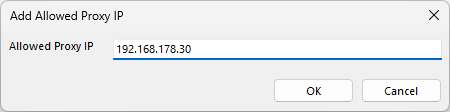
Edit
Opens a dialog to changes the selected proxy IP.
Delete
Deletes the selected proxy IPs.
CORS
CORS (Cross-Origin Resource Sharing) will allow clients to access the server even if it is in a different domain than the domain of the requested url. CORS sets the Access-Control-Allow-Origin header of the http response.
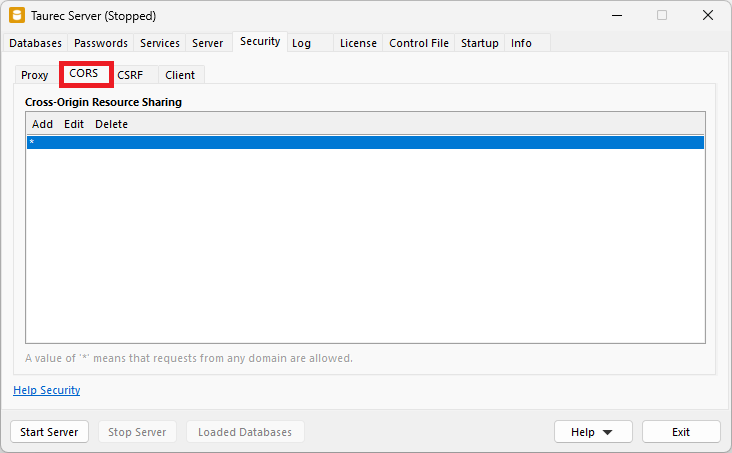
Cross-Origin Resource Sharing
List of the origins (domain, scheme, or port). A * means that the server can be accessed by any origin.
Add
Adds a CORS.

Edit
Edits the selected CORS.
Delete
Deletes the selected CORS.
CSRF
CSRF (Cross-Sight Request Forgery) ToDo
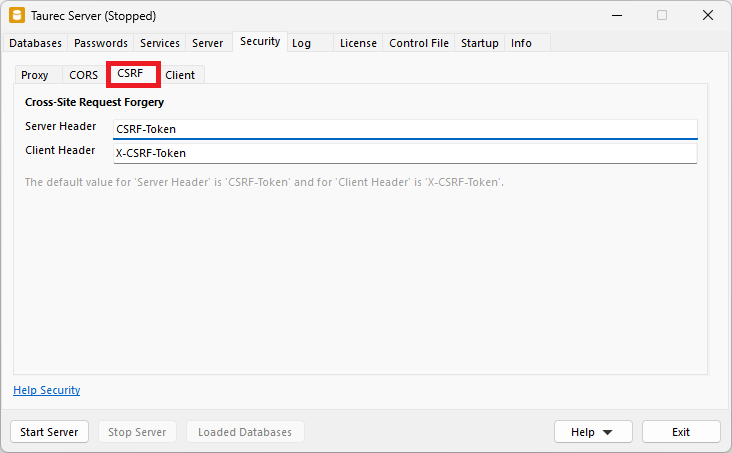
Server Header
ToDo
Client Header
ToDo`
Client
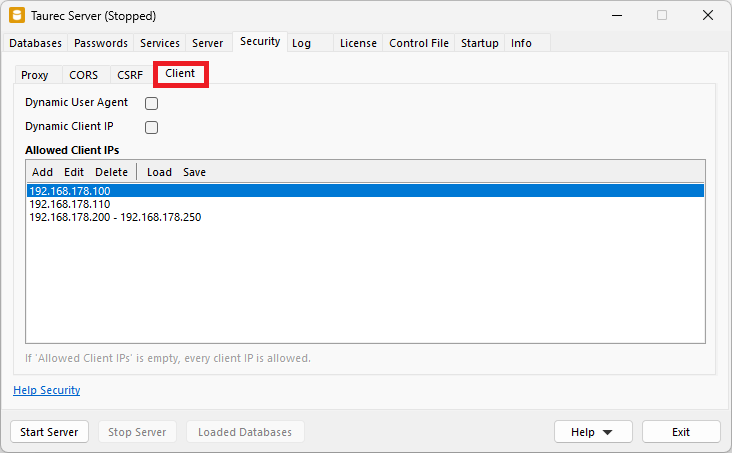
Dynamic User Agent
Usually, a client uses the same user agent for each query. This is checked by the server. If a client uses different user agents for each query, Dynamic Client IP must be set.
Dynamic Client IP
Usually, a client uses the same IP address for each query. This is checked by the server. If a client uses different IP addresses for each query, Dynamic Client IP must be set.
Allowed Client IPs
Only specified client IPs are allowed to log in (whitelist). These can be single IPs or IP ranges. If no allowed client IP is set, every client IP is allowed.
Add
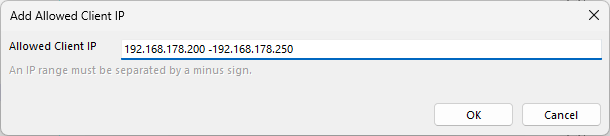
Opens a dialog to add a client IP to the list. An IP range must be separated by a minus sign.
Edit
Opens a dialog to changes the selected client IP. An IP range must be separated by a minus sign.
Delete
Deletes the selected client IP from the list.
Load
Opens a dialog to load the allowed client IPs from a text file. IP ranges must be separated by a minus sign.
Example:
127.0.0.1
192.168.179.10
192.168.178.40 - 192.168.178.50
Save
Opens a dialog to save the allowed client IPs to a text file.
Log
Each database activity can be stored in a log file. The log files are stored in a directory of the server.
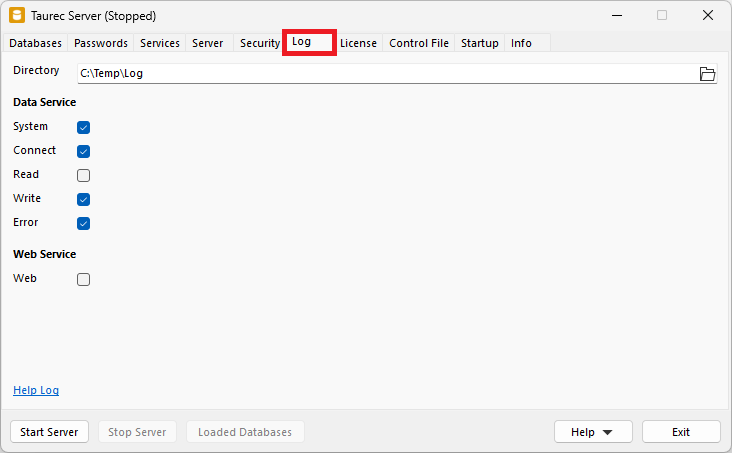
Directory
Directory for the log files.
Data Server
System
Logs the changes of databases (start, stop...), users (create, delete, new password...) or roles.
Connect
Logs connecting or disconnecting to a database.
Read
Logs reading data.
Write
Logs writing or changing data.
Error
Logs invalid commands.
Web Server
Web
Logs web server requests.
Log Files
Log files are created in Concatenated JSON format. Each log record is a JSON object. It starts with { and ends with }.
Example:
json
{
  "info": {
    "id": "{C2659CBE-57B4-4547-8A88-0EA912716AEA}",
    "localdatetime": "2023-06-02 07:49:20",
    "utcdatetime": "2023-06-02 05:49:20",
    "database": "Demo",
    "user": "Sys",
    "endpoint": "Rpc",
    "kind": "Read"
  },
  "connection": {
    "clientuseragenthash": "1582899277",
    "clientiphash": "1532542490",
    "serverhost": "192.168.178.179",
    "serverport": 8700
  },
  "requestheader": [
    "accept-encoding=gzip, deflate",
    "accept=application/octet-stream",
    "authentication=`* Uid - Replaced in log `*"
    "user-agent=Windows Console",
    "content-type=text/plain; charset=utf-8",
    "connection=Keep-Alive",
    "content-length=103",
    "host=192.168.178.179:8700"
  ],
  "requestcontent": [
    "SHOW ITEMS",
    "DIMENSION=[Product]"
  ],
  "responsestatus": {
    "code": 200,
    "reason": "OK"
  },
  "input": [
    "SHOW ITEMS",
    "DIMENSION=[Product]",
	"// `* Uid - Replaced in log `*"
  ],
  "output": [
    "OK"
  ],
  "statistic": [
    "Records=7",
    "Server Milliseconds=0",
    "Stream Bytes=656"
  ]
}
The log files are saved in the directory specified in Directory. New log files are created for every day. The file name contains the date. Different log files are created in several categories:
System Log
General changes are saved in the system log file (server start or stop, edit users...).
System_YYYY_MM_DD.logDatabase Log
Each database has its own log file. The name of the database is included in the file name.
Data_❮Database❯_YYYY_MM_DD.logIndividual Database Log For a Use
An individual log file can be created for a user. This parameter must be enabled for each user.
Log_❮Database❯@❮User❯_YYYY_MM_DD.logWeb Server Log
The web server has its own log file.
Web_YYYY_MM_DD.logLicense
The license determines how many users can be activated in a database. Name, user and key must match and are assigned by support. An empty Name field starts the community edition. It is limited to 10 users and has no other restrictions. Any number of users can be created in a database, but the users who exceed the number of licensed users will be deactivated, but not deleted.
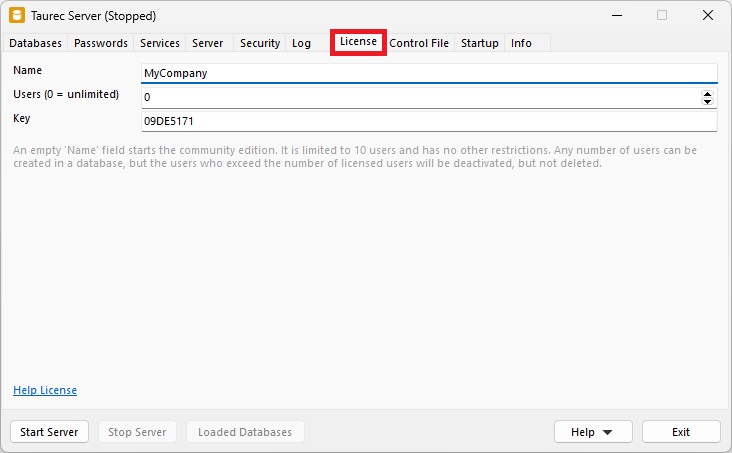
Name
Name for which the license was issued.
Users
Number of licensed named users. Any number of users can be created in a database, but the users who exceed the number of licensed users will be deactivated, but not deleted.
Key
Key that matches the name and the number of concurrent users.
Control File
The server settings are stored in a control file. This file can be located in different directories. The default location for the control file is the startup directory of the server. At startup, the server searches for the Control.txt file in this directory.
Alternatively, a custom control file can be used. The start parameter ControlFile= specifies the absolute or relative path to the control file at startup.
Example:
shell
C:\MyServer\Server.exe ControlFile=C:\MyServer\Control.txt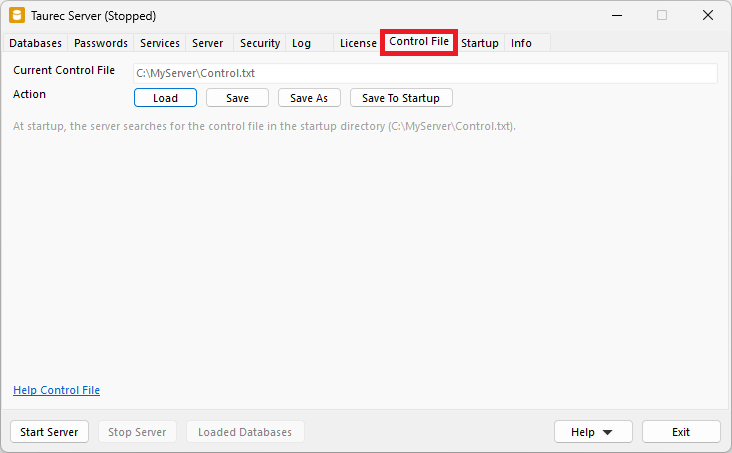
Current Control File
Shows the latest loaded or saved control file.
Action
| Button | Description |
|---|---|
| Load | Opens a dialog to load the server settings from a control file. |
| Save | Saves the server settings to the current control file. |
| Save As | Opens a dialog to save the server settings to another control file. |
| Save To Startup | Saves the server settings to the startup directory of the server. |
Control File Format
The control file saves the configuration parameters of the tabs in a text file. The parameters can be edited directly in the file if needed. Passwords are stored as hashes and cannot be changed in the control file.
Example:
# Databases
Parallel=True
DatabaseDirectory=C:\MyDatabases\Finance
# Passwords
SysPasswordHash=e81e7562c094540a05c960e855f9e5eb7
SysTechPasswordHash=64f94284c259589c364783023bf8e9740
# Services
DataService=True
DataServicePort=8700
DataServiceMaxThreads=8
WebService=True
WebServicePort=443
WebServiceDirectory=C:\MyServer\Web
# Server
ServerType=HttpSys
AutoDisconnect=240
# Server, BuiltIn Server IPs
BuiltInIp=127.0.0.1
BuiltInIp=192.168.178.76
# Server, BuiltIn Connection
BuiltInMaxConnections=10000
BuiltInThreadPool=10
# Server, BuiltIn TLS
BuiltInTls=True
BuiltInTlsCertificateFile=C:\MyServer\Certificate\Company.cer
BuiltInTlsKeyFile=C:\MyServer\Certificate\Company.key
BuiltInTlsKeyPassword=
BuiltInTlsRootCertificateFile=C:\MyServer\Certificate\Company.intermediate.cer
BuiltInTlsDhParametersFile=
# Server, HTTP.sys (Windows)
HttpSysTls=True
# Security, Proxy
Proxy=True
ProxyIp=192.168.178.12
ProxyIp=192.168.178.22
# Security, CORS
Cors=*
# Security, CSRF
CsrfServerHeader=CSRF-Token
CsrfClientHeader=X-CSRF-Token
# Security, Client
DynamicUserAgent=False
DynamicClientIp=False
AllowedClientIp=192.168.178.100
AllowedClientIp=192.168.178.110
AllowedClientIp=192.168.178.200 - 192.168.178.250
# Log
LogDirectory=C:\MyServer\Log
LogSystem=False
LogConnect=False
LogRead=False
LogWrite=False
LogError=False
LogWeb=False
# License
LicenseName=MyCompany
LicenseUsers=0
LicenseKey=09DE5171
# Startup (Windows)
Priority=Normal
ServiceName=TaurecServer
Startup
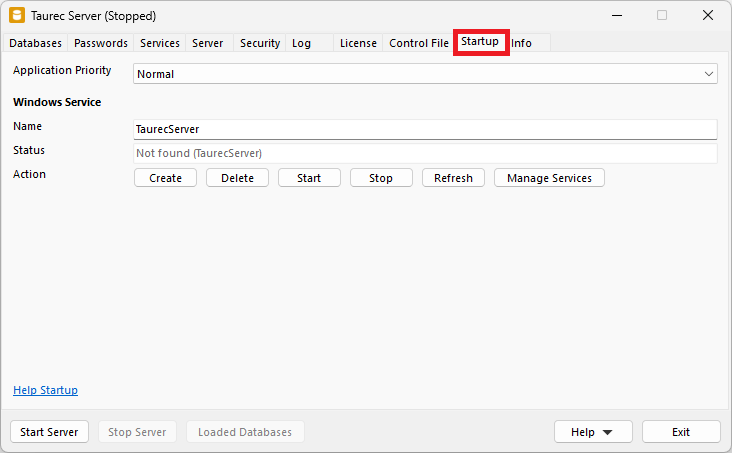
Application Priority
Sets the priority of the server application in the Windows® system. The default value is Normal.

Windows Service
The server can run as an application or as a Windows® service. The service can be created and managed directly from the application. To do this, the application must be run as an administrator (right click, run as administrator).
When the server runs as a service, do not use a relative path for files and directories. E.g. database directories, web server directory, log directory or control file.
Name
Name of the service. No blanks or special characters are allowed.
Status
Shows the service status for the specified service name.
Action
| Button | Description |
|---|---|
| Create | Opens a dialog to create the service. |
| Delete | Deletes the service. |
| Start | Starts the service. |
| Stop | Stops the service. |
| Refresh | Refreshes the status of the service. |
| Manage Services | Shows the Windows® service manager. |
Create a Service
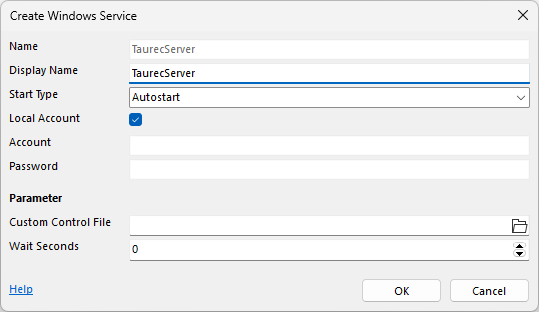
A service can be created with the Windows Service/Action/Create button.
Name
Name of the service. It is a reference to the Service/Name field of Startup.
Display Name
Name which is displayed in Windows® Service and Task Manager.
Start Type
Start type of the service.

Local Account
When enabled, the service is created with the local account.
Account and Password
When Local Account is disabled, the name and password of the service user must be specified.
Custom Control File
The server settings are stored in a control file. This can be located in different directories. The default location for the control file is the startup directory of the server. At startup, the server searches for the Control.txt file in this directory. If another control file should be used, it is specified in Custom Control File.
Wait Seconds
Wait time in seconds until the server starts. It may be necessary to wait for the network on automatic startup. Otherwise, the TCP/IP addresses required by the server may not be available.
Using sc.exe to Manage the Service
Alternatively, the following sc Windows® commands can also be used to manage the server. In this sample the service name is TaurecServer.
Example create (the space after binpath= and start= is important):
shell
sc create TaurecServer binpath= 'C:\MyServer\Server.exe /Service=TaurecServer' start= autoExample delete:
shell
sc delete TaurecServerExample start:
shell
sc start TaurecServerExample stop:
shell
sc stop TaurecServerExample query:
shell
sc query TaurecServerExample config (the space after start= and displayname= is important):
shell
sc config TaurecServer start= disabled displayname= MyTaurecServer