Appearance
Visual Scripts
A visual script represents a calculation tree that can be edited using a form of visual programming. Users can create calculations, such as key figures or deviations, without programming knowledge. This is possible in Taurec applications like the Manager or Studio. Formulas, functions, and parameters can be linked graphically in a type of flow chart. The procedure is self-explanatory and easy to learn.
Items
The building blocks of a visual script are commands, values, and variables. In applications like the Manager, these items are shown as rectangles. Each item can have up to three inputs and one output.
Output
In this example, the constant value 10 is defined. The item has no inputs. The output is shown as a filled rectangle at the bottom.

Input
The function + adds two numbers. Both inputs are shown as filled triangles at the top. The result is returned via the output.

Links
Items are connected by lines. In this example, the numbers 10 and 2 are added. The result 12 is returned at the output of the lower item.

Result
In a visual script, all items must be linked. The lowest (final) item has one output that is not linked to other items. This output returns the final result.
Calculation Flow
A visual script can be used for different tasks: calculating values in tables, calculating values during queries, or performing specific steps within Calculations.
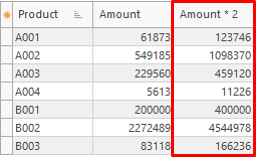
In this example, a calculated field Amount * 2 is defined with a visual script that multiplies the field Amount by 2.

The result is shown in the table.
Editor
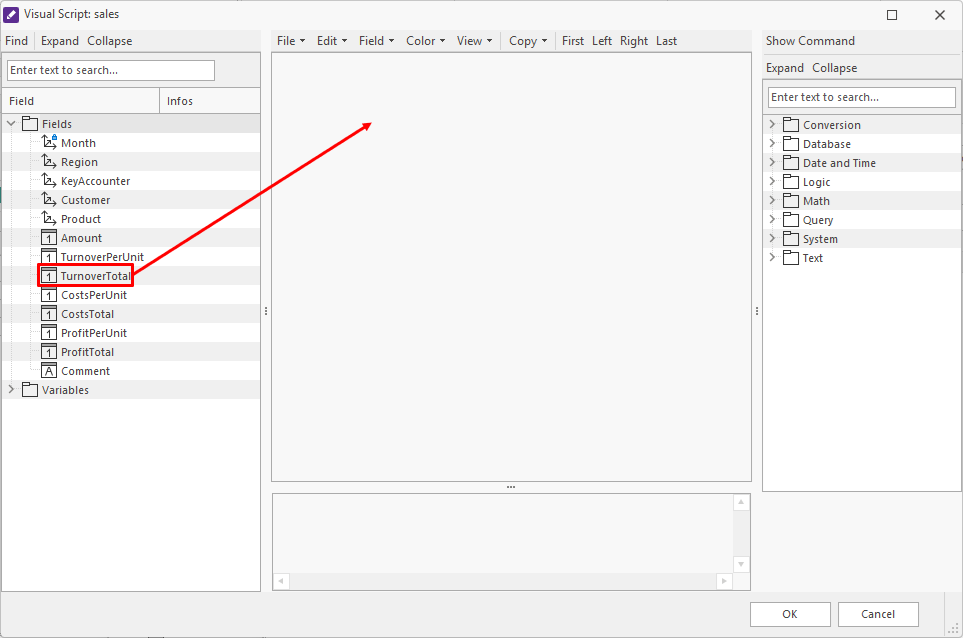
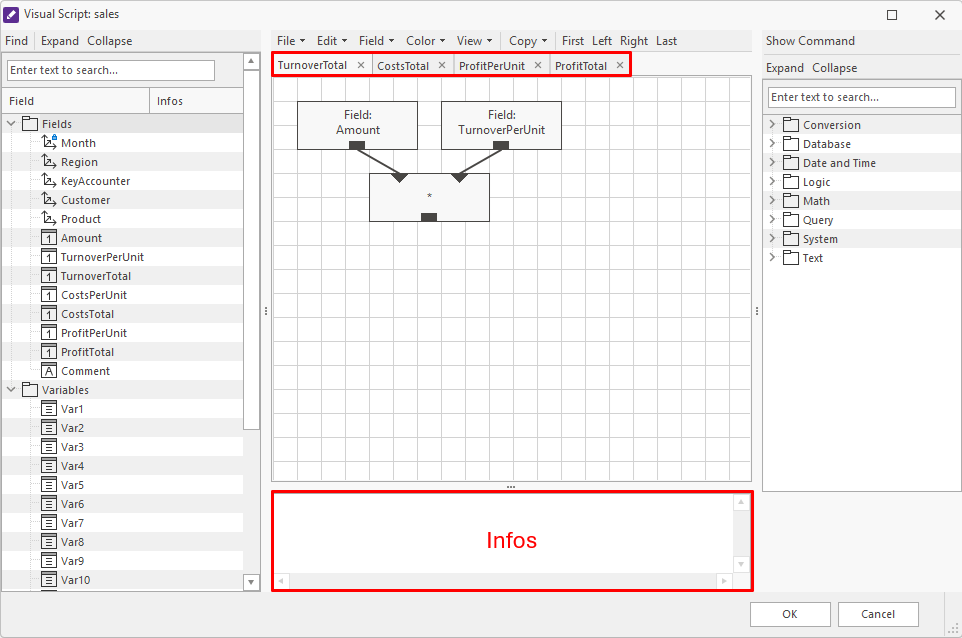
An editor is provided in several apps to create visual scripts graphically. When opening the editor for the first time, the fields in the list are shown on the left. To perform a calculation, a field can be moved into the empty area by dragging or double-clicking the field.
Calculating Multiple Fields
If several fields are to be calculated, each field needs to be dragged into the header of the tab pane or double-clicked. The fields are displayed one after another in the tab pane and are calculated in this order. Additional information can be stored for each field as text in the lower section.
Using Fields and Commands
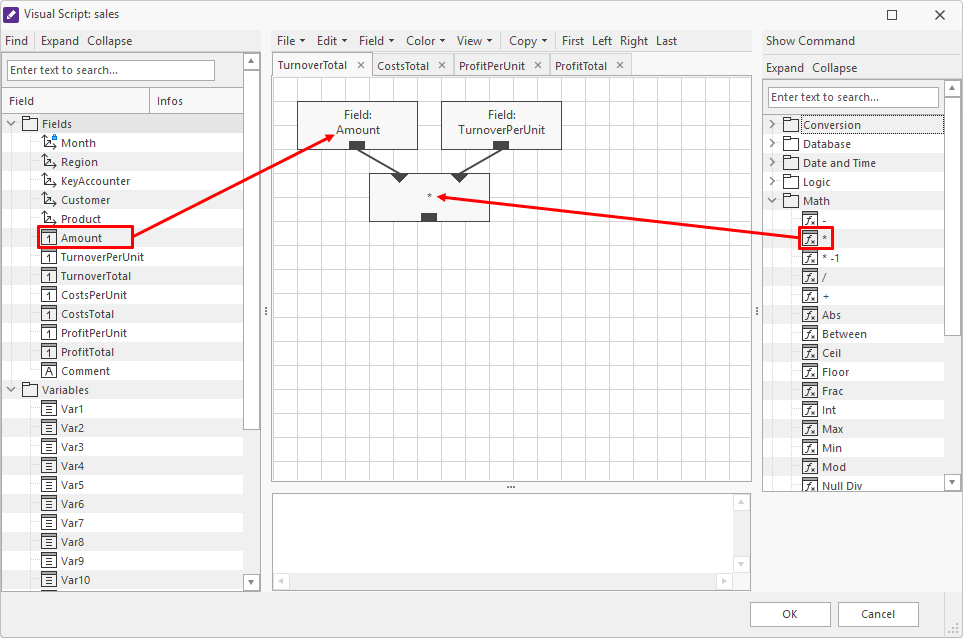
Once a field for the calculation is created, drag and drop can be used to place fields and commands.
Kinds of Items
There are different kinds of items:
Constants
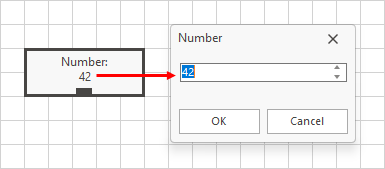
Constants are fixed numbers or texts. They have no input, only an output. Double-clicking the element in the editor opens a window to enter the value.
Fields
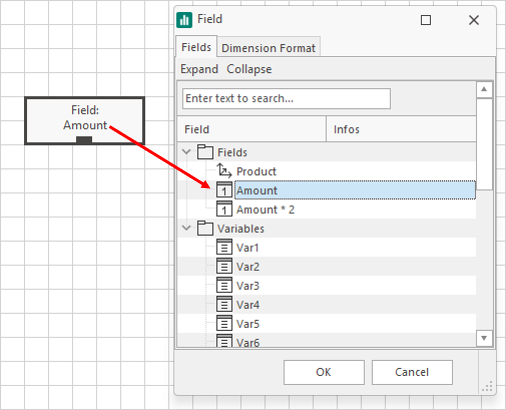
The data records in a list are processed during calculations. The fields in the list can be accessed in the visual script. These can be dimension elements, numbers, or texts.
Fields have no input. Double-clicking the item in the editor opens a window to select or change a field.
Dimension Items
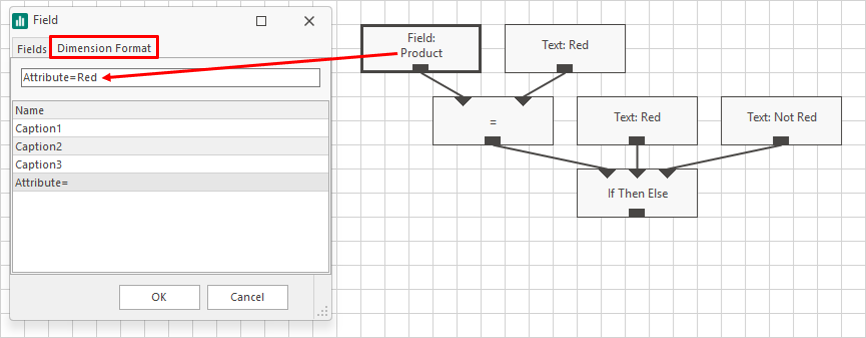
For dimension items, it is possible to access not only the name but also descriptions and attributes. The Dimension format tab can be used for this in the selection dialog.
In this example, the product attribute Color is queried.
Functions
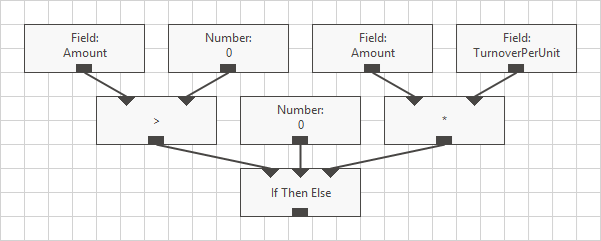
A function performs calculations, such as Addition or Subtraction. Logical constructs like If-Then-Else also exist.
Variables
Each visual script has 20 variables that can be used to store intermediate calculation results. Variables can contain number and text values.