Appearance
Insert Customize Consolidate
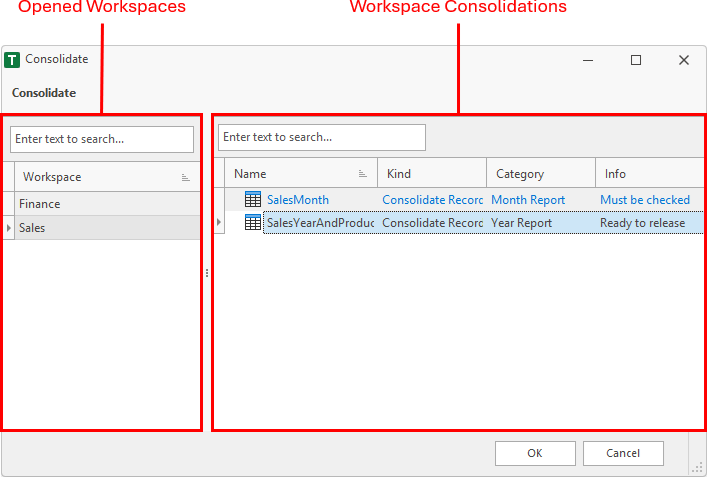
Opens a dialog to select a workspace consolidation. The window is divided into two areas. On the left, the opened workspace are displayed. On the right, the user can select a consolidateion of the selected workspace.
After click on the OK button, the active cell of the worksheet is filled with a tag and the fill color is changed to orange. Below this cell an info text is displayed (blue). The text and the format of the info cell can be changed.

Tag Format
The inserted tag cell has a specified format. The addin searches for this format.
- The tag cell starts with << and ends with >>.
- First, the static text CustomizeConsolidate indicates that a consolidation should be changed. After this text, a # must be set.
- Then a text pair follows, which is separated by an equals sign. The first part indicates the workspace and the second parts indicates the consolidation of the workspace.
Customize Dialog
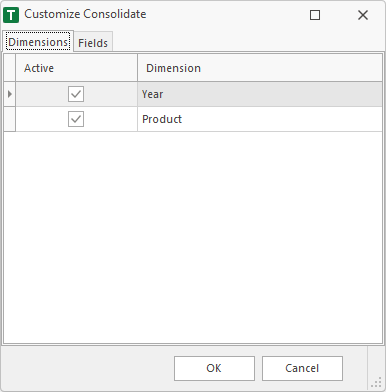
When a user double clicks an a cell, the cell above is checked by the addin. If the cell matches the tag format, the customize dialog is opened.
In the dialog, the user is able to show or hide dimensions (Dimensions page) or fields (Fields page) of the specified consolidation.